SaaS & GRC Controls
See which cloud apps your people are using for each compliance control, choose the approved tool, and spot the unapproved ones.
What the page is for
SaaS & GRC Controls is a page in the Lavawall® console, in the Compliance (GRC) area. Lavawall is the RMM, security, and compliance platform from ThreeShield, built and hosted in Canada. About this feature.
Lavawall's SaaS discovery finds the cloud applications people in your organization sign up for and use. This page connects those findings to your compliance controls. For each control, it shows the categories of app that matter (for example file sharing or AI assistants) and every app detected in each category, with how many users and emails were seen.
You can mark one app in each category as the preferred tool. Any other app detected in that category is then highlighted as non-preferred, so shadow IT stands out. Preferred AI tools are also listed as approved in the AI policies Lavawall generates for you.
What you see
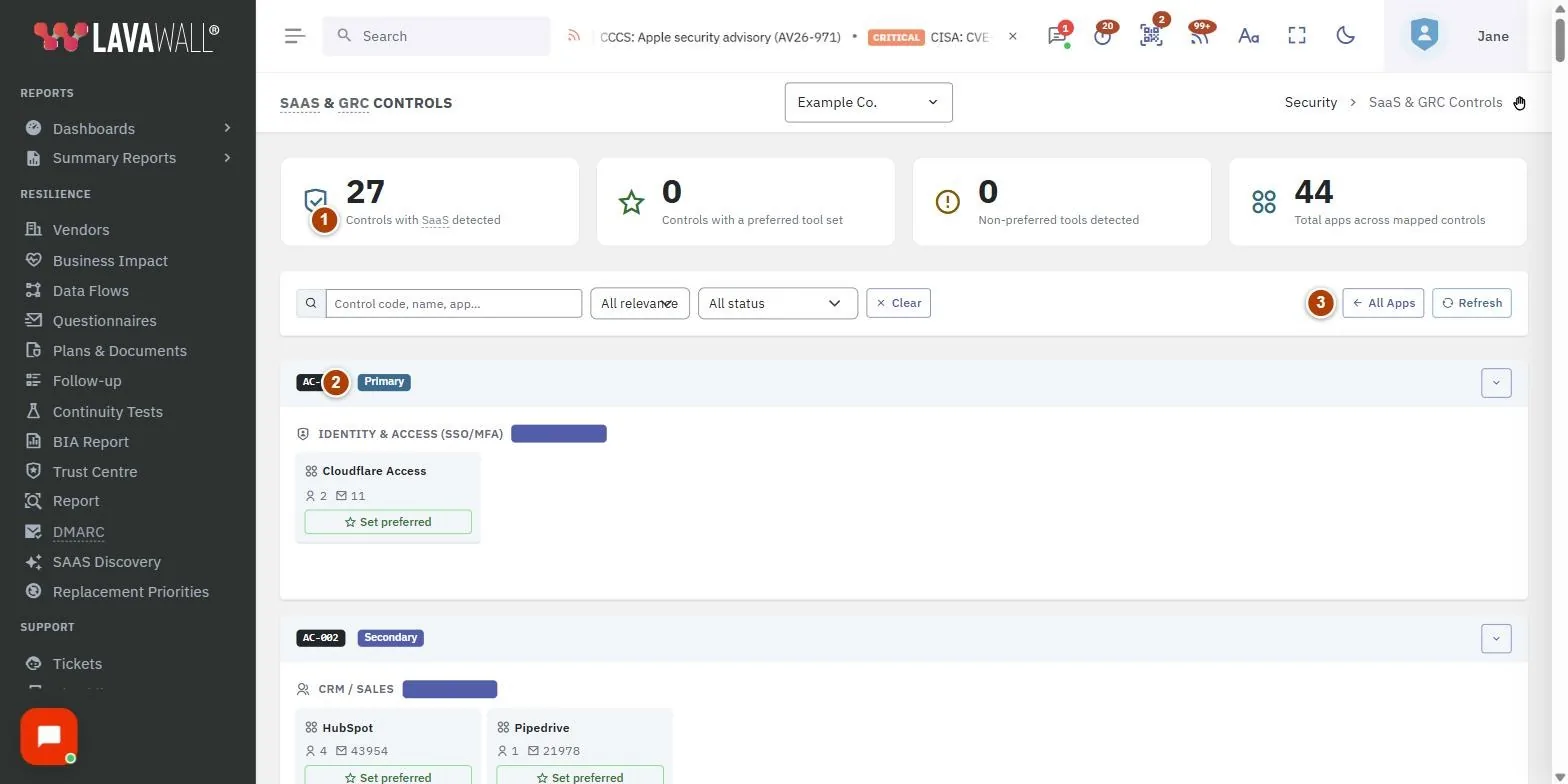
- Summary cards: Controls with SaaS detected, Controls with a preferred tool set, Non-preferred tools detected and Total apps across mapped controls.
- Filter bar: search by control code, name or app; filter by relevance (Primary or Secondary) and status (Has preferred tool, Has non-preferred tool, No preferred set); Clear.
- Page buttons: All Apps (back to SaaS Discovery) and Refresh.
- Control cards: each control with its relevance, and under it each app category with its detected apps. Preferred apps are marked with a star; non-preferred apps are highlighted in amber. Each app shows its user and email counts and a Set preferred or Clear preferred button.
- App users: select an app to see who uses it: User, Trigger, Confidence, First seen, Last seen and Signals.
How to set the preferred tool for a category
- Find the control and category, for example by typing the app name in the search box.
- On the app you want to approve, select Set preferred.
- In Set preferred tool, add an optional Note and select Set as Preferred. Other detected apps in that category are highlighted as non-preferred.
How to clear a preferred tool
- On the preferred app (marked with a star), select Clear preferred.
- Confirm Yes, remove it. No tool is marked as preferred for that category.
How to see who uses an app
- Select the app's card.
- Review the App users list, including when each person was first and last seen and how confident the detection is.
How to find the gaps
- Set the status filter to Has non-preferred tool to see where people use unapproved apps.
- Set it to No preferred set to see categories where you have not chosen a tool yet.
Tips
- Start with categories marked Primary; they matter most for the control.
- Set a preferred AI tool before generating your AI policy, so the approved tool is named in it.
- Use Refresh after new discovery results come in.
- Talk to the users of a non-preferred app before blocking it. The App users list shows who they are.
Troubleshooting
- "No GRC controls have SaaS detections for this company yet."
- SaaS discovery has not found apps that map to your controls. Make sure SaaS discovery is set up and has run.
- "Your GRC role does not include access to this page."
- Ask an administrator to change your compliance role.
- "The preferred tool could not be set."
- You may not have compliance edit permission. Ask an administrator.
Related articles
Still need help?
Search the support centre, or contact our support team and tell us which page you were on:
- Chat now: use the chat button in the bottom-right corner of this page to reach our team right away. Where cookie consent is needed, the chat starts after you accept (cookie settings).
- Email: send our support team a message through the contact page. It goes straight to a person.
- Phone:
 AB: 1-403-538-5053
 US: 1-406-988-7333
 UK: +44 20 3695 9786
Names, companies, devices and figures in the pictures are examples. Other product and company names are trademarks of their respective owners.